
Admin Portal Guides
Creating Projects
How to create and set up new building permit projects
Creating Projects
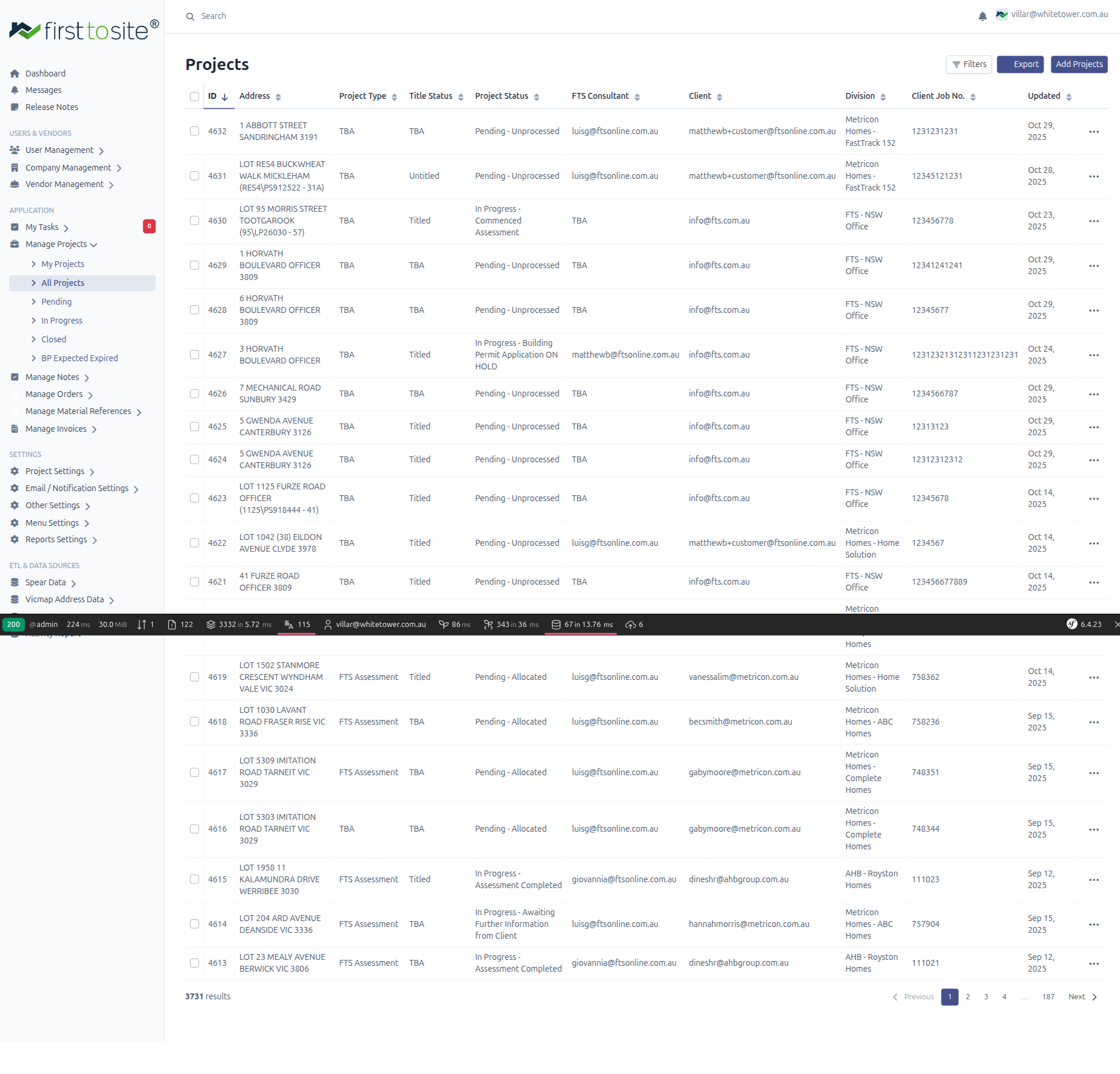
Projects are the core of FTS Platform. Each project represents a building permit application for a specific property address.
Creating a New Project
- Navigate to Manage Projects → All Projects in the sidebar
- Click the Add Projects button (top right)
- Fill in the required fields (marked with asterisk)
Project Details Tab
The main project form is organized into expandable sections:
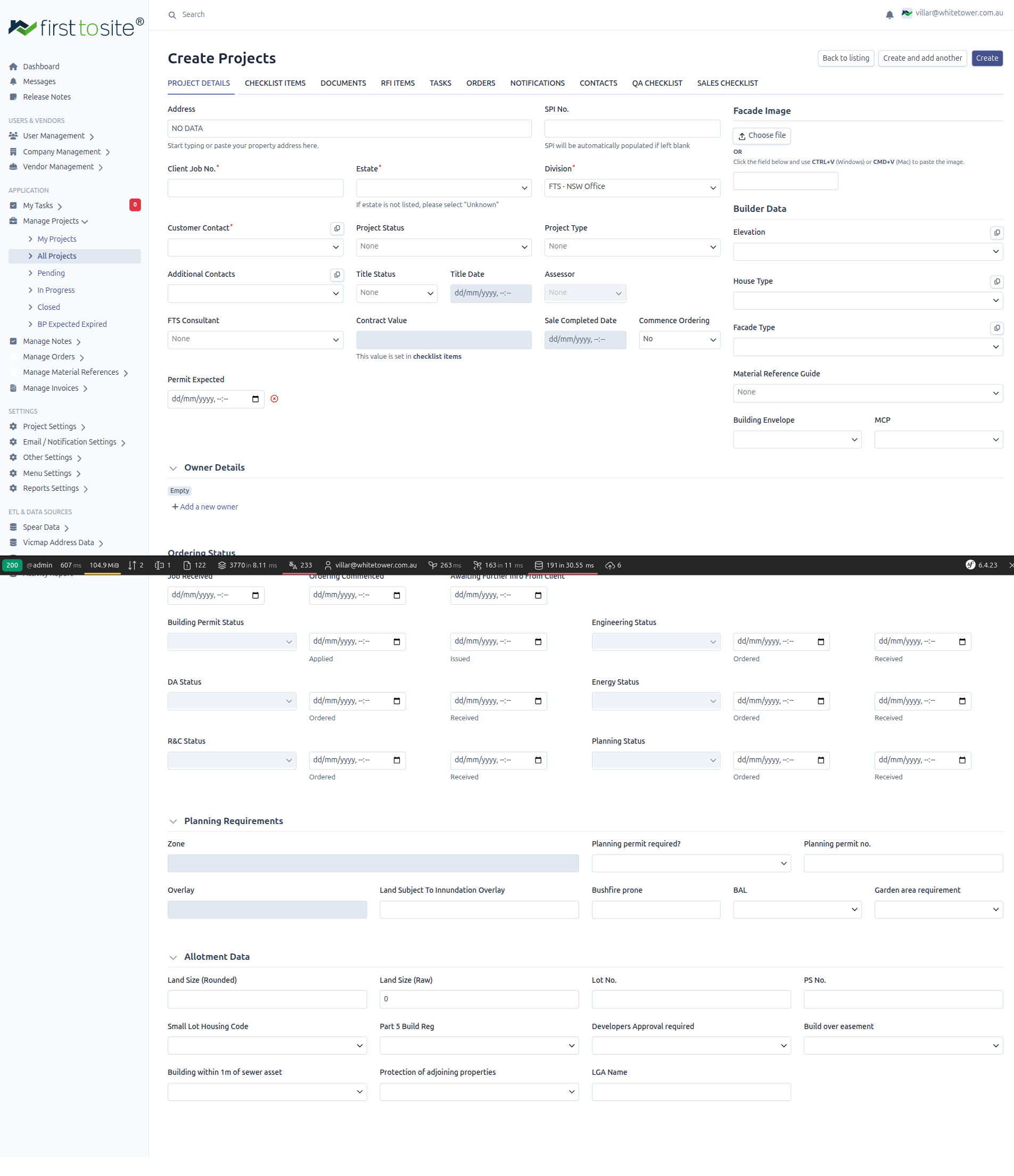
Estate (Project Basics)
| Field | Type | Required | Description |
|---|---|---|---|
| ID | Text area | Yes | Internal project identifier field used when creating/editing records. |
| Address | Text | No | Start typing an address (e.g., "3 Collins St"); auto-populates SPI and location data. |
| SPI No. | Text | No | Auto-populated when address lookup succeeds; can be entered manually. |
| Client Job No. | Text | Yes | Customer reference number for the job. |
| Customer Contact | Autocomplete select | Yes | Primary contact email for the project; list is company-driven. |
| Project Status | Autocomplete select | No | Current workflow status (full list below). |
| Additional Contacts | Autocomplete select | No | Extra project contacts; list is company-driven. |
| Title Date | Date/time | No | Date the title was registered. |
| Assessor | Autocomplete select | No | Assigned assessor for the project. |
Project Status options:
- In Progress - Sale Accept Completed
- In Progress - Building Permit Application ON HOLD
- Pending - Unprocessed
- Pending - Pending Allocation
- Pending - Allocated
- In Progress - Commenced Assessment
- In Progress - Awaiting Further Information from Client
- In Progress - Commenced Ordering
- In Progress - Title Issued
- In Progress - R&C Ordered
- In Progress - R&C Received
- In Progress - Engineering Ordered
- In Progress - Engineering Received
- In Progress - Planning Ordered
- In Progress - Planning Received
- In Progress - Energy Ordered
- In Progress - Energy Received
- In Progress - DA Ordered
- Pending - DA On Hold
- In Progress - DA Received
- In Progress - Building Permit Applied
- In Progress - Job On Hold
- In Progress - Awaiting Further Information from Vendor
- In Progress - Awaiting Land Registration (Title)
- In Progress - Awaiting Statement of Compliance
- In Progress - Assessment Completed
- Closed - Building Permit Issued
- Closed - Cancelled
- Closed - Rejected
- Closed - Signed Drawings
FTS Consultant & Dates
| Field | Type | Required | Description |
|---|---|---|---|
| FTS Consultant | Autocomplete select | No | Assigned staff member managing this project. |
| Contract Value | Text | No | Set automatically from checklist items. |
| Sale Completed Date | Date/time | No | When the property sale was finalized. |
| Commence Ordering | Autocomplete select | No | Yes/No toggle for starting orders. |
| Permit Expected | Date/time | No | Target date for building permit issuance. |
Facade Image (Builder Data)
| Field | Type | Required | Description |
|---|---|---|---|
| Elevation | Autocomplete select | No | Builder elevation selection. |
| House Type | Autocomplete select | No | Builder house type. |
| Facade Type | Autocomplete select | No | Facade style selection. |
| Building Envelope | Autocomplete select | No | Options: Yes, No, N/A, TBA. |
| MCP | Autocomplete select | No | Options: TBA, Yes, No, Pending. |
Ordering Status
| Field | Type | Required | Description |
|---|---|---|---|
| Job Received | Date/time | No | When the project was received. |
| Ordering Commenced | Date/time | No | When service orders began. |
| Awaiting Further Info From Client | Date/time | No | When RFIs were sent to the customer. |
| Building Permit Status | Autocomplete select | No | Options: TBA, Applied, Pending, Submitted, Issued, Rejected, Resubmitted. |
| Engineering Status | Autocomplete select | No | Options: TBA, Pending, Ordered, Received, Rejected, Resubmitted. |
| DA Status | Autocomplete select | No | Options: TBA, Pending, Ordered, Received, Rejected, Resubmitted. |
| Energy Status | Autocomplete select | No | Options: TBA, Pending, Ordered, Received, Rejected, Resubmitted. |
| R&C Status | Autocomplete select | No | Options: TBA, Pending, Ordered, Received, Rejected, Resubmitted. |
| Planning Status | Autocomplete select | No | Options: TBA, Pending, Ordered, Received, Rejected, Resubmitted. |
Planning Requirements
| Field | Type | Required | Description |
|---|---|---|---|
| Zone | Text | No | Planning zone code (e.g., GRZ3, NRZ1). |
| Planning permit required? | Autocomplete select | No | Options: Yes, No, N/A, TBA. |
| Planning permit no. | Text | No | Permit number when applicable. |
| Overlay | Text | No | Planning overlays (e.g., DCPO1, DDO8). |
| Land Subject To Innundation Overlay | Text | No | Indicates if inundation overlay applies. |
| Bushfire prone | Text | No | Indicates if bushfire prone overlay applies. |
| BAL | Autocomplete select | No | Bushfire Attack Level selection. |
| Garden area requirement | Autocomplete select | No | Garden area requirement value. |
Allotment Data
| Field | Type | Required | Description |
|---|---|---|---|
| Land Size (Rounded) | Text | No | Rounded land area in sqm. |
| Land Size (Raw) | Text | No | Exact land area from title. |
| Lot No. | Text | No | Lot number. |
| PS No. | Text | No | Plan of Subdivision number. |
| Small Lot Housing Code | Autocomplete select | No | Options: Yes, No, N/A, TBA. |
| Part 5 Build Reg | Autocomplete select | No | Options: Yes, No, N/A, TBA. |
| Developers Approval required | Autocomplete select | No | Options: Yes, No, N/A, TBA. |
| Build over easement | Autocomplete select | No | Options: Yes, No, N/A, TBA. |
| Building within 1m of sewer asset | Autocomplete select | No | Options: Yes, No, N/A, TBA. |
| Protection of adjoining properties | Autocomplete select | No | Options: Yes, No, N/A, TBA. |
| LGA Name | Text | No | Local Government Area (e.g., HUME). |
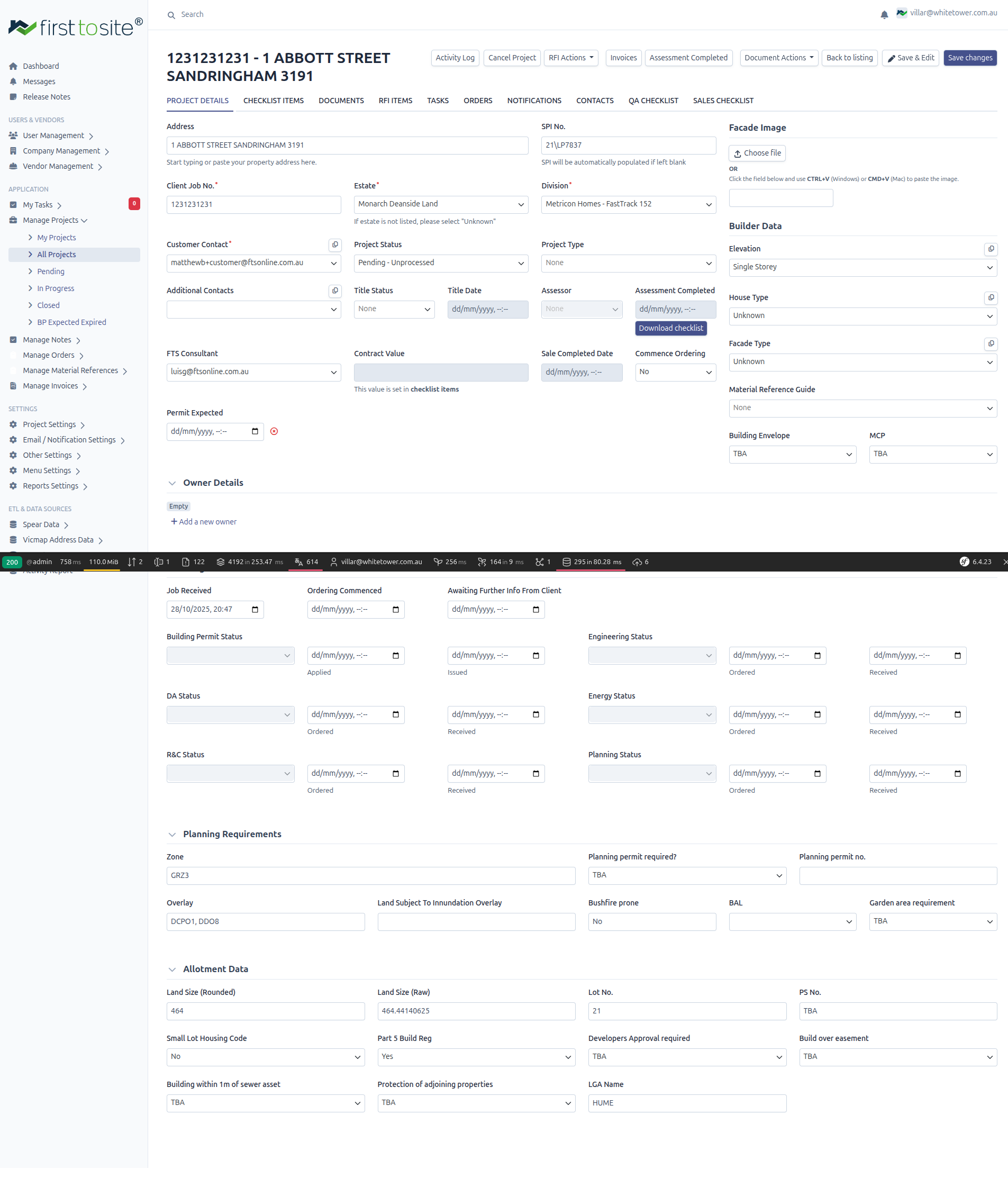
Project Tabs
Each project has multiple tabs for managing different aspects:
| Tab | Purpose |
|---|---|
| PROJECT DETAILS | Main project information (described above) |
| CHECKLIST ITEMS | Compliance checklist with all required items |
| DOCUMENTS | Upload and manage project documents |
| RFI ITEMS | Requests for Information sent to/from customer |
| TASKS | Assigned tasks for this project |
| ORDERS | Service orders placed for this project |
| NOTIFICATIONS | System notifications and alerts |
| CONTACTS | Related contacts for this project |
| QA CHECKLIST | Quality assurance checklist |
| SALES CHECKLIST | Sales-related checklist items |
Action Buttons
The project header contains quick action buttons:
| Button | Action |
|---|---|
| Activity Log | View history of changes to this project |
| Cancel Project | Cancel the project (with confirmation) |
| RFI Actions | Dropdown with RFI-related actions |
| Invoices | Jump to invoices for this project |
| Assessment Completed | Mark assessment as complete |
| Document Actions | Dropdown for document operations |
| Back to listing | Return to projects list |
| Save & Edit | Save and continue editing |
| Save changes | Save and close |
Project Status Workflow
Projects flow through these statuses:
| Status | Meaning |
|---|---|
| Pending - Unprocessed | Newly created, not yet reviewed |
| Pending - Allocated | Assigned to a consultant |
| In Progress - Commenced Assessment | Assessment work started |
| In Progress - Assessment Completed | Checklist review done |
| In Progress - Building Permit Application ON HOLD | BP application paused |
| In Progress - Awaiting Further Information from Client | Waiting for customer response |
| Complete | All work finished |
Filtering Projects
The Filters button opens a modal, but no filter fields were present in the UI during the latest capture. Use Export to download the list as CSV.
Tips
- Let address lookup do the work - Type the address and select from suggestions to auto-populate SPI, zone, overlays, and land data
- Check Small Lot Housing Code - Land under 300 sqm typically uses SLHC checklist
- Set Permit Expected date - This drives deadline tracking and notifications
- Assign an FTS Consultant - Ensures notifications go to the right person
Next Steps
- Complete the Checklist - Review compliance requirements
- Upload Documents - Attach required files
- Place Orders - Order external services