
Managing Documents
How to upload, organize, and manage project documents
Managing Documents
Every project requires supporting documents - architectural drawings, engineering reports, energy assessments, and compliance certificates. The Documents tab provides a central place to manage all project files.
Documents Tab
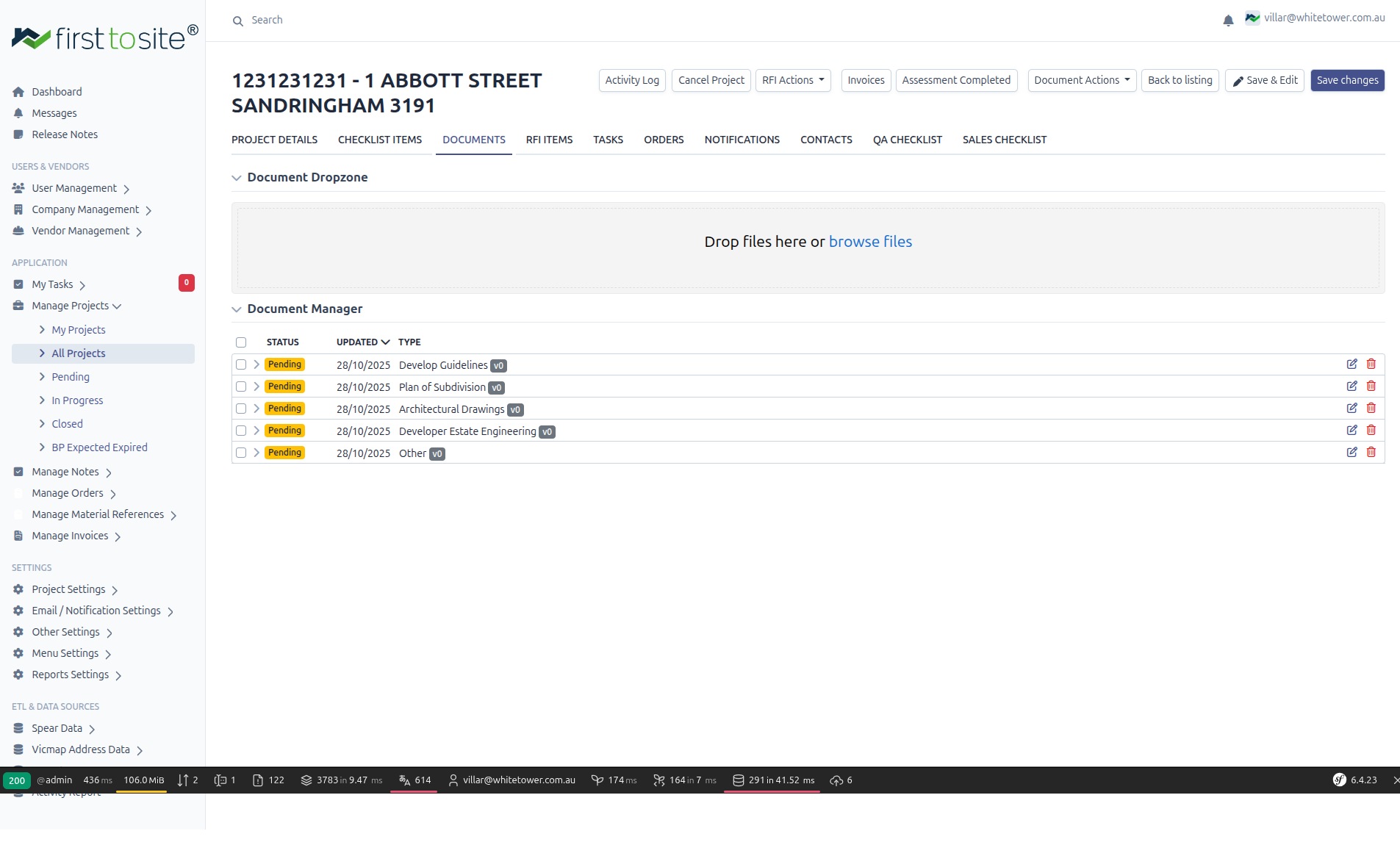
Open any project and click the DOCUMENTS tab to access the document manager.
Document Dropzone
At the top of the Documents tab, you'll find the Document Dropzone:
- Drag and drop files directly onto the dropzone area
- Or click browse files to select from your computer
- Multiple files can be uploaded at once
Document Manager
Below the dropzone, the Document Manager lists all documents attached to the project:
| Column | Description |
|---|---|
| Checkbox | Select documents for batch actions |
| Expand arrow | Click to see document versions |
| STATUS | Current status (Pending, Approved, Rejected) |
| UPDATED | Last modification date |
| TYPE | Document category with version number (e.g., "v0") |
| Actions | Edit and delete buttons |
Document Types
Documents are categorized by type. Common document types include:
| Type | Description |
|---|---|
| Develop Guidelines | Estate/developer design guidelines |
| Plan of Subdivision | Lot plan and subdivision documents |
| Architectural Drawings | Floor plans, elevations, site plans |
| Developer Estate Engineering | Engineering requirements from estate |
| Other | Miscellaneous documents |
Additional document types may include:
- Building Contract
- Certificate of Title
- Energy Rating Report
- Engineering Drawings
- Soil Report
- Survey Plan
- BAL Assessment
Document Subcategories
In addition to the primary document type, documents can have a subcategory for finer classification. For example:
- "Architectural Drawings" might have subcategories like "Floor Plans", "Elevations", "Site Plans"
- "Engineering" might have "Structural Computations", "Structural Drawings", "Certification"
Subcategories help organize documents when a project has many files of the same type. In the Customer Portal, both type and subcategory are displayed for each document.
Document Status
Each document has a status:
| Status | Meaning |
|---|---|
| Pending | Uploaded but not yet reviewed |
| Approved | Reviewed and accepted |
| Rejected | Requires resubmission |
Document Versioning
Documents are automatically versioned:
- First upload = v0
- Each subsequent upload of the same type = v1, v2, etc.
- Click the expand arrow to see version history
- Previous versions are retained for audit trail
Uploading Documents
Drag and Drop
- Open the project's DOCUMENTS tab
- Drag files from your computer onto the dropzone
- Select the document type from the dropdown
- Click Upload
Browse Files
- Click browse files in the dropzone
- Select one or more files
- Assign document types
- Click Upload
Bulk Actions
Select multiple documents using checkboxes to:
- Download selected files
- Delete selected files
- Change status (if permitted)
Document Actions Menu
From the project header, click Document Actions for:
- Download All - Get all project documents as a ZIP
- Generate Document Pack - Create a compiled document package
- Other document operations
Required Documents
Checklist items often require specific documents. The checklist shows which documents are needed and their current status:
- Green checkmark = Document uploaded and approved
- Yellow warning = Document pending review
- Red X = Document missing or rejected
Tips
- Name files clearly - Include address or job number in filenames
- Upload early - Documents can be uploaded before assessment begins
- Check versions - Expand documents to see revision history
- Watch for Pending - Review and approve documents to progress the project
- Use correct types - Proper categorization helps with compliance tracking
Batch Upload
For large projects with many documents:
- Prepare all files with clear names
- Drag the entire batch onto the dropzone
- Assign types to each file
- Upload all at once
Downloading Documents
- Click the download icon on any document row
- Or use Document Actions → Download All for everything
- ZIP downloads preserve folder structure by document type
Next Steps
- Checklists & RFIs - Track which documents satisfy requirements
- Working with Orders - Documents from completed orders