
Working with Orders
How to place and manage service orders for projects
Working with Orders
Orders are requests for external services needed for building permit applications - things like Engineering assessments, Energy ratings, Development Application processing, and Property Pack reports.
Orders List
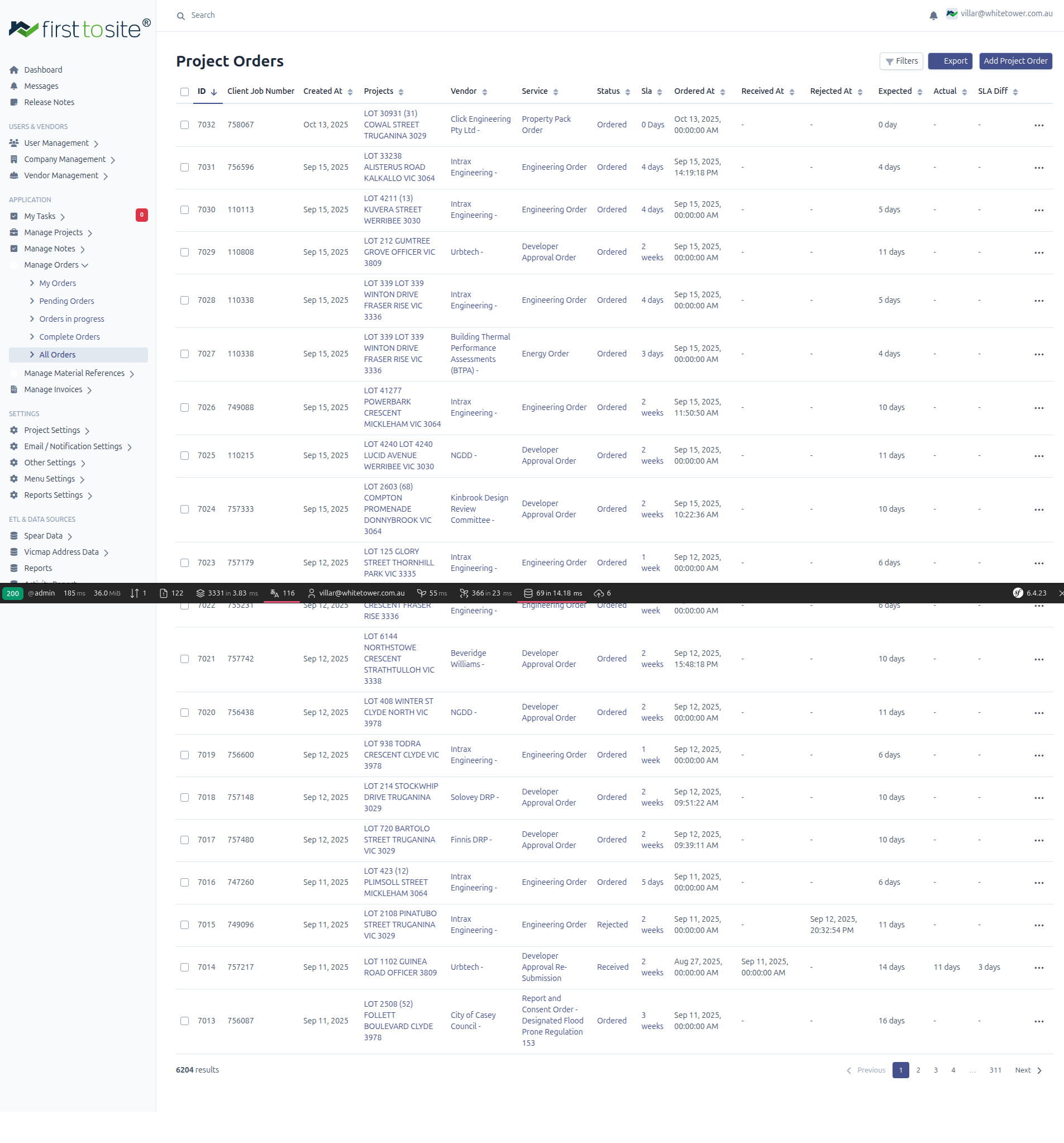
Navigate to Manage Orders in the sidebar to see all orders. The list shows:
| Column | Description |
|---|---|
| ID | Unique order number |
| Client Job Number | Customer's reference |
| Created At | When the order was placed |
| Projects | Address of the related project |
| Vendor | Service provider (e.g., Intrax Engineering, Urbtech) |
| Service | Type of order (Engineering Order, Energy Order, etc.) |
| Status | Current status (Ordered, Received, Rejected, etc.) |
| SLA | Days since order placed |
| Ordered At | Date/time order was sent |
| Received At | Date/time response received |
| Rejected At | If rejected, when |
| Expected | Expected completion (days) |
| Actual | Actual days to complete |
| SLA Diff | Difference from expected |
Order Types
FTS Platform handles several order types:
| Order Type | Description |
|---|---|
| Engineering Order | Structural engineering assessment |
| Energy Order | Energy efficiency rating (6-star) |
| Developer Approval Order | Estate/developer design review |
| Property Pack Order | Title and property information |
| Building Thermal Performance Assessments (BTPA) | Thermal compliance reports |
| Report and Designated Flood Prone Regulation | Flood risk assessments |
Order Submenu
The Manage Orders menu expands to show filtered views:
- My Orders - Orders assigned to you
- Pending Orders - Not yet sent to vendor
- Orders in progress - Sent, awaiting response
- Complete Orders - Received or processed
- All Orders - Unfiltered list
Placing an Order
From a Project
- Open the project
- Go to the ORDERS tab
- Click Add Order
- Select the order type and vendor
- Fill in required details
- Click Save
From the Orders List
- Go to Manage Orders → All Orders
- Click Add Project Order (top right)
- Select the project (search by address or job number)
- Select order type and vendor
- Complete the form
- Click Save
Order Statuses
| Status | Meaning |
|---|---|
| Pending | Created but not yet sent to vendor |
| Submitted | Submitted for processing, not yet confirmed |
| Ordered | Sent to vendor, awaiting response |
| On Hold | Paused, awaiting additional information or documents |
| Received | Vendor has delivered the report/assessment |
| Rejected | Vendor rejected or couldn't complete — may be resubmitted |
| Resubmitted | Previously rejected/on-hold order sent back for processing |
| Cancelled | Order was cancelled |
Delivery Performance
Once an order is received (completed), the system calculates delivery performance:
| Indicator | Meaning |
|---|---|
| Ahead (+Xd) | Delivered X days before the expected date |
| On Time | Delivered on the expected date |
| Delayed (-Xd) | Delivered X days after the expected date |
The calculation compares the actual completion days against the expected days from the SLA. This metric is visible in both the Admin Portal orders list and the Customer Portal orders tab.
Order Rejection & Resubmission
When a vendor rejects an order or puts it on hold:
- The order status changes to Rejected or On Hold
- A rejection reason and notes are recorded
- The customer can view the rejection reason in the Customer Portal or Ordering Portal
- To resubmit:
- Upload corrected or additional documents
- Add notes explaining the corrections
- Click Resubmit
- The order status changes to Resubmitted
- A new expected date is calculated based on the resubmission date
- The order re-enters the processing queue
Order Fields
When creating or editing an order:
| Field | Description |
|---|---|
| Project | The project this order belongs to |
| Service Type | Type of service being ordered |
| Vendor | Service provider to send to |
| Status | Current order status |
| Ordered At | Date/time order was placed |
| Expected Days | SLA for vendor response |
| Notes | Additional instructions for vendor |
| Attachments | Files to send with order |
Tracking SLA
The orders list calculates SLA metrics automatically:
- SLA column - Days since order was placed
- Expected column - Standard turnaround time for this order type
- Actual column - Actual days to completion (once received)
- SLA Diff column - Variance from expected (negative = late)
Use filters to find orders approaching or exceeding their SLA.
Vendor Integration
Orders can be sent to vendors automatically when configured. The system:
- Packages the order details and attachments
- Sends to the vendor's system/email
- Tracks delivery confirmation
- Receives and attaches responses
Filtering Orders
Click Filters to filter by:
- Order status
- Vendor
- Service type
- Date range
- SLA status (on-time, late)
Click Export to download filtered results as CSV.
From the Project Orders Tab
The project's ORDERS tab shows only orders for that specific project. You can:
- View order history
- See delivery status
- Download received documents
- Create new orders
Core Milestone Orders
Some orders are designated as Core Milestone orders, tracking key project milestones. In the Customer Portal, these appear in a dedicated "Core Milestone" tab separate from regular orders. In the Admin Portal, core milestone flags are set via the service or user group service configuration.
Tips
- Check SLA before ordering - Know expected turnaround times
- Include all attachments - Missing documents delay responses
- Monitor the SLA column - Follow up on orders exceeding expected days
- Use vendor notes - Provide context to help vendors complete faster
Next Steps
- Managing Documents - Handle order responses
- Checklists & RFIs - Track what orders satisfy